
- Study in your browser or export as a native .apkg file for Anki
- AI maps rows and columns to card fields intelligently
- Works with .xlsx, .xls, and .csv files
The #1 AI-Powered Excel to Anki Converter
The #1 AI Flashcards Maker
Upload a spreadsheet — study the generated cards online or export a structured .apkg deck for Anki.
Free to start · no credit card required
Spreadsheets are perfect for organizing vocabulary lists, terminology, and structured data — but staring at rows won't help you memorize them. AnkiDecks intelligently maps columns to card fields so your data becomes study-ready flashcards in seconds.
Three steps. Under a minute.
PDF, Word doc, notes, a YouTube URL, or just a topic name. Any format works.
Our AI extracts the key concepts and turns them into Question-Answer, Cloze, or Multiple Choice cards.
Study right here with spaced repetition, or export to Anki desktop with one click.
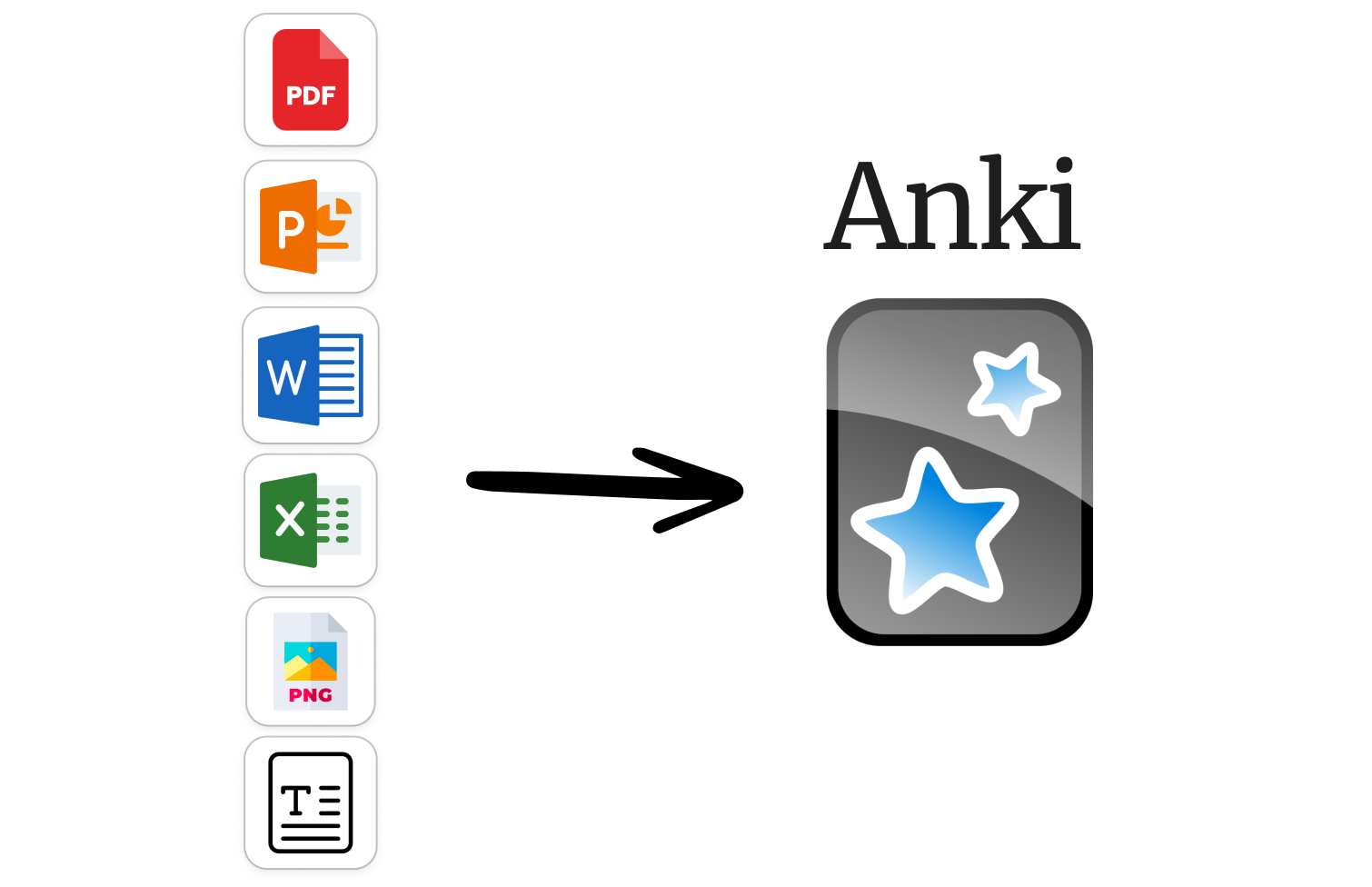
PDF, PowerPoint, Word, Excel, EPUB, images, handwritten notes. Upload and we handle the rest.

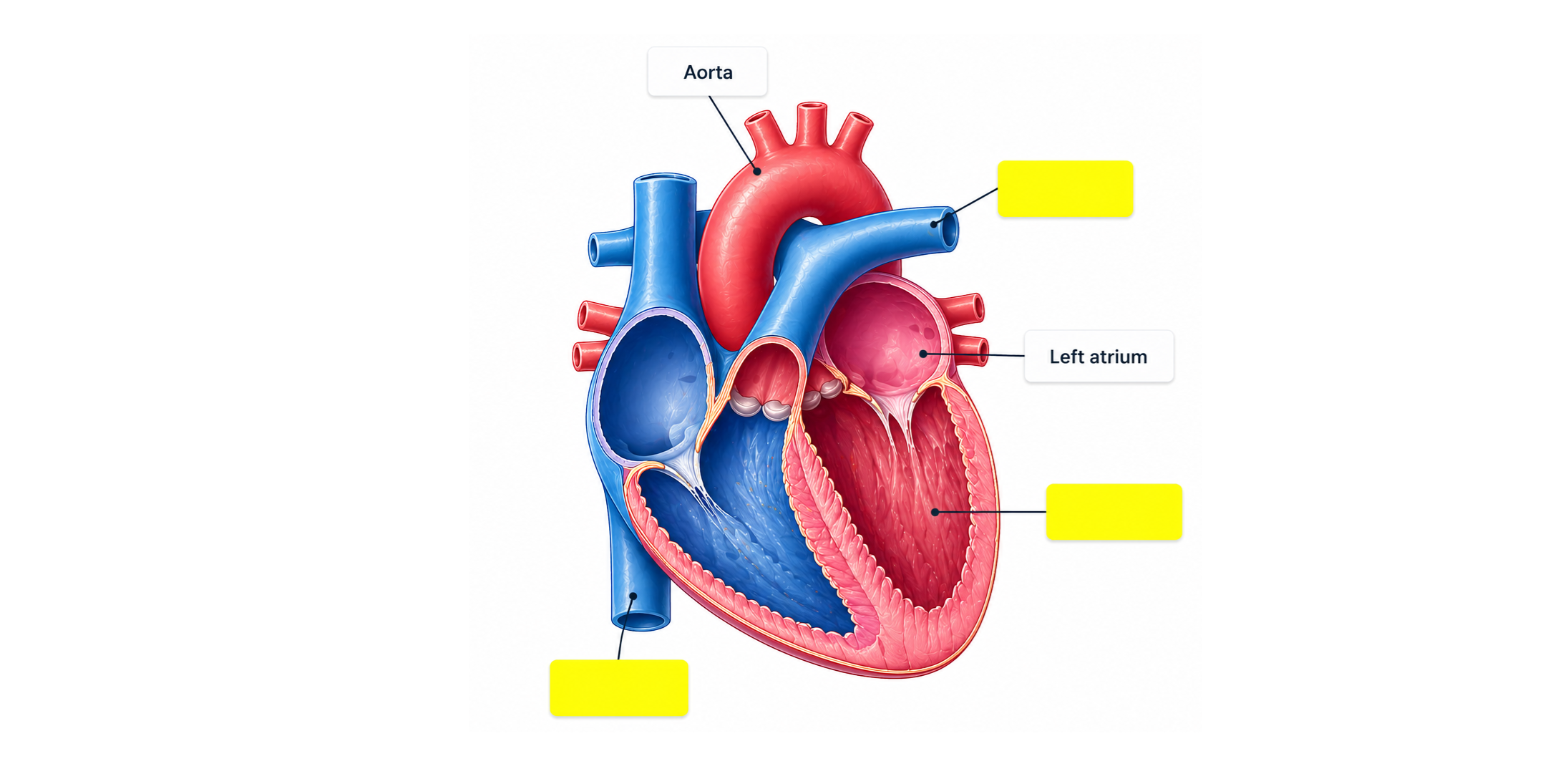
Study anatomy diagrams, maps, and charts by hiding labels. Works with handwritten notes too.
Generate cards in your language. Upload in one language, get cards in another. Perfect for language learners.
Already use Anki desktop? Export any deck as a .apkg file with one click. Or use our built-in spaced repetition to study directly in your browser — no Anki required.

Upload lecture slides, textbook chapters, or research papers. Our AI reads the content and extracts the key concepts as study-ready flashcards — in seconds, not hours. Works with PowerPoint, Word, Excel, and EPUB too.
Paste any YouTube URL. We transcribe the video, identify the key concepts, and generate flashcards automatically. Works for lectures, documentaries, tutorials, and language lessons.
Share any deck with a link — classmates can clone it, study it, or export it to their own Anki. Great for study groups, tutors, and teachers. Set decks to public, private, or link-only.
Upload anatomy diagrams, maps, or handwritten notes. AnkiDecks detects labels and creates occlusion cards automatically — study by revealing hidden parts one by one. Loved by med students.
Don't start from scratch. Find decks made by students just like you — anatomy, pharmacology, law, languages, history and more. Save any deck to your account and start studying instantly.
Frequently Asked Questions
Real reviews from real students
Using AnkiDecks has been an absolute game changer! It used to take me so long to create individual decks myself, but now I can have them generated just within minutes.
None of the AI anki card makers have been as accurate as this. You should have seen my sigh of relief when I found this 1 month from my ophthalmology board exams!
The worst part about Anki is making the cards — it takes such a long time. AnkiDecks is a game changer. Easy Image Occlusions, easy Cloze cards, easy everything.
It worked out of the box for translation. A really simple yet powerful tool for language learning. Tim has been extremely responsive and helpful.
Join 100,000+ students already using AnkiDecks.
Generate Flashcards — Free ✦